
A Microsoft server setup for small business is the process of selecting, installing, and configuring Windows Server on dedicated hardware to centralize file access, user management, and data protection across your organization. The right edition choice alone determines your licensing cost, your user capacity, and whether you need Client Access Licenses at all. Modern small business servers no longer function as simple file storage. They act as hybrid infrastructure hubs, combining local file access and AI capabilities with cloud services like Microsoft 365 for communication and collaboration. Therefore, this guide covers edition selection, hardware requirements, step-by-step installation, and ongoing security practices for Windows Server 2025.
Which Microsoft server edition is right for your small business?
Windows Server Essentials is the entry point for small business server solutions. It supports up to 25 users and 50 devices without requiring Client Access Licenses. Hence, that single fact eliminates one of the largest hidden costs in small business IT setup, since CALs typically add $30–$50 per user on top of the base server license.

Windows Server Standard suits businesses that have outgrown Essentials or need virtualization rights. Standard includes two Hyper-V virtual machine licenses per server, which Essentials does not. If your team exceeds 25 users or you plan to run multiple virtual workloads, Standard is the correct edition.
Windows Server Datacenter is designed for large-scale virtualization environments. Therefore, it is not a practical choice for most small businesses due to its significantly higher cost. The decision between Essentials and Standard covers the needs of the vast majority of small and medium businesses.
SQL Server editions for small business databases
Windows SQL Server edition selection follows the same logic. SQL Server Standard edition covers most production workloads for small businesses and avoids the high licensing cost of Enterprise edition. Standard supports up to 32 CPU cores and 256 GB RAM, which is sufficient for typical small business ERP, CRM, and reporting applications. Hence, many small businesses mistakenly purchase SQL Server Enterprise without needing its advanced features, which results in unnecessary overspending. Additionally, standard is the appropriate choice for most small business databases.
| Edition | User/Device Limit | CALs Required | Virtualization |
|---|---|---|---|
| Windows Server Essentials | 25 users / 50 devices | No | Not included |
| Windows Server Standard | Unlimited | Yes | 2 VMs included |
| Windows Server Datacenter | Unlimited | Yes | Unlimited VMs |
| SQL Server Standard | No user limit | No | Workload-based |
| SQL Server Enterprise | No user limit | No | Advanced features |
Pro Tip: Windows Server Essentials is only available as an OEM or ROK license bundled with new physical server hardware. Request the OEM/ROK bundle when ordering from Dell or HP. Standalone retail versions are not available.
What hardware and network infrastructure do you need?
Hardware selection directly affects server reliability and Windows Server compatibility. Therefore, recommended server models for most small businesses include the Dell T160, Dell T360, and HP DL320 Gen11. These tower and rack servers ship with certified Windows Server 2025 Essentials compatibility, which reduces driver conflicts and simplifies support.
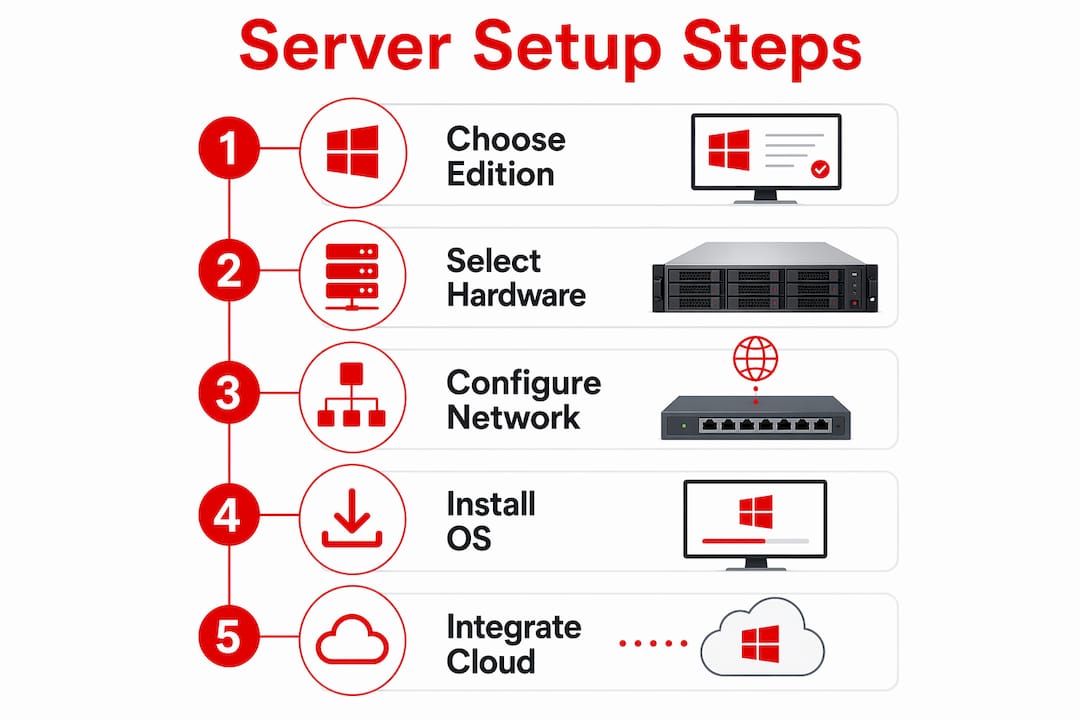
Network infrastructure is equally important. Small businesses benefit from 2.5GbE minimum network connectivity to meet modern server performance standards. Higher network speeds improve file transfer rates and reduce backup windows, both of which affect daily productivity.
Core hardware and network checklist
- Server hardware: Select Dell T160/T360 or HP DL320 Gen11 for certified Windows Server 2025 compatibility.
- RAM: Minimum 16 GB for Essentials; 32 GB or more for Standard with virtualization.
- Storage: Use RAID 1 or RAID 5 configurations for data redundancy on local drives.
- Network switch: Deploy a managed switch with 2.5GbE ports for server and NAS connections.
- Static IP assignment: Reserve a static IP address on your router or switch before beginning installation.
- UPS (Uninterruptible Power Supply): Protect the server from power outages to prevent data corruption.
| Component | Minimum Spec | Recommended Spec |
|---|---|---|
| CPU | Intel Xeon E-2300 series | Intel Xeon E-2400 series |
| RAM | 16 GB ECC | 32 GB ECC |
| Storage | 1 TB RAID 1 | 2 TB RAID 5 |
| Network | 1GbE | 2.5GbE |
| Power Protection | Basic surge protector | UPS with AVR |
Pro Tip: If your primary need is shared file storage for fewer than 10 users, a NAS device running Synology DSM or QNAP QTS may cost less and require less maintenance than a full Windows Server deployment. Evaluate your workload before committing to a full server.
How to install and configure Microsoft server for your small business
A structured installation process prevents the most common configuration errors. Follow these steps for Windows Server 2025 Essentials or Standard.
Phase 1: Operating system installation
- Boot from the Windows Server 2025 installation media (USB or DVD).
- Select the correct edition: Essentials for up to 25 users, Standard for larger teams.
- Choose a clean installation on your primary RAID volume.
- Enter your product key and complete the initial setup wizard.
- Set a strong local administrator password before proceeding.
Phase 2: Network and IP configuration
Configuring a static IP address is a required step before installing Active Directory Domain Services. Skipping this step causes domain join failures and DNS resolution problems that require significant troubleshooting time in production environments.
- Open Network and Sharing Center and select your active adapter.
- Assign a static IP address within your local subnet (for example, 192.168.1.10).
- Set the preferred DNS server to the server’s own static IP address (127.0.0.1 or the static IP itself).
- Set the alternate DNS to your router’s IP or a public DNS as a fallback.
- Confirm connectivity with a ping test to your router and an external address.
Phase 3: Active Directory and domain controller setup
Active Directory Domain Services (AD DS) is the core identity management component of a Windows Server environment. It controls user accounts, group policies, and device access across your network.
- Open Server Manager and select “Add Roles and Features.”
- Install the Active Directory Domain Services role.
- After installation, click “Promote this server to a domain controller.”
- Create a new forest and enter your domain name (for example, yourbusiness.local).
- Set the Directory Services Restore Mode (DSRM) password and complete the promotion wizard.
- The server will restart and operate as your domain controller.
Phase 4: Cloud integration
Integrating with Microsoft 365 for Business extends your local server with cloud-based email, Teams, and SharePoint. Azure Backup provides offsite data protection without requiring a secondary physical server. Configure Azure Backup through the Azure portal by installing the Recovery Services agent on your Windows Server. Set a daily backup schedule and define a retention policy of at least 30 days.
Best practices for maintaining and securing your server environment
Ongoing maintenance determines whether your server remains reliable after the initial setup. Apply Windows Server updates monthly through Windows Update or Windows Server Update Services (WSUS). Unpatched servers are the most common entry point for ransomware attacks targeting small businesses.
Backup strategy follows the 3-2-1 rule: maintain 3 copies of data, stored on 2 different media types, with 1 copy stored offsite. Azure Backup satisfies the offsite requirement without additional hardware. A local NAS or external drive covers the second media type.
A server with no tested restore process is not a backup. Run a full restore test at least once per quarter to confirm your backup data is usable.
Security practices for small business Windows Server environments:
- Firewall rules: Block all inbound traffic except required ports (RDP on a non-standard port, HTTPS for web services).
- Admin account limits: Create a dedicated admin account and disable the default Administrator account after setup.
- Group Policy: Use Group Policy Objects (GPOs) to enforce password complexity, screen lock timers, and software restrictions.
- Event log monitoring: Review Security and System event logs weekly for failed login attempts and service errors.
- Licensing compliance: Audit your volume licensing agreements annually to confirm user and device counts match your licenses.
Pro Tip: Enable Windows Defender Credential Guard on Windows Server 2025 Standard to protect Active Directory credentials from pass-the-hash attacks. This feature is available at no additional cost and requires only a Group Policy change.
Key takeaways
A successful Microsoft server setup for small business requires matching the Windows Server edition to your user count, configuring static IP before Active Directory installation, and combining local and cloud backup from day one.
| Point | Details |
|---|---|
| Edition selection matters | Windows Server Essentials covers up to 25 users with no CAL requirement, reducing licensing costs. |
| Static IP is a prerequisite | Configure a static IP address before installing AD DS to prevent domain join and DNS failures. |
| SQL Server Standard is sufficient | Standard edition supports up to 32 CPU cores and 256 GB RAM, covering most small business workloads. |
| Follow the 3-2-1 backup rule | Store 3 copies of data on 2 media types, with 1 offsite copy using Azure Backup. |
| Hardware certification reduces risk | Dell T160/T360 and HP DL320 Gen11 are certified for Windows Server 2025 and simplify support. |
What I have learned from small business server deployments
The single most common mistake in small business server setup is skipping static IP configuration before promoting a server to a domain controller. As a result, the error does not appear immediately. It surfaces hours later when workstations fail to join the domain, and the fix requires demoting and re-promoting the domain controller, which costs half a day of downtime.
The second mistake is licensing mismatch. A business with 18 users purchases Windows Server Standard and pays for CALs, when Essentials would have covered the same environment at lower total cost. Subsequently, matching the license to actual user and device counts before purchasing is not optional. It is the first calculation you should make.
Above all, the role of a small business server has also changed. Hence, it is no longer just a file share. In other words, it is the authentication hub for Microsoft 365 hybrid identity, the local endpoint for Azure Backup, and increasingly the host for local AI workloads running on Windows Server 2025. To clarify, businesses that treat their server as a static appliance miss the operational gains that come from proper cloud integration.
Most importantly, professional help is worth the cost at two specific points: initial Active Directory design and licensing compliance review. Getting the organizational unit (OU) structure wrong at setup creates permission problems that compound over years. Subsequently, getting licensing wrong creates audit liability. Further, both are cheaper to fix before deployment than after.
— Technology
How Technology Solutions Worldwide supports your Microsoft server deployment
Technology Solutions Worldwide is a Microsoft Solutions Partner with over 20 years of experience in Microsoft licensing and migration services. Most importantly, small businesses working with Technology Solutions Worldwide receive Microsoft licensing support that covers edition selection, CAL calculations, and volume licensing agreements, with discounts of 20–30% off standard Microsoft subscription pricing.
For businesses scaling beyond Essentials or planning a migration to Windows Server 2025, Technology Solutions Worldwide provides migration and licensing services that cover the full transition from legacy server environments to hybrid cloud configurations. Clients including Coca-Cola and T-Mobile rely on Technology Solutions Worldwide for compliant, cost-controlled Microsoft deployments. Contact Technology Solutions Worldwide to confirm your edition requirements and licensing costs before purchasing hardware.
FAQ
What is Windows Server Essentials best suited for?
Windows Server Essentials is best suited for businesses with up to 25 users and 50 devices. It eliminates the need for Client Access Licenses, which reduces total licensing cost for small teams.
Do I need SQL Server for a small business Windows Server setup?
SQL Server is only required if your business runs a database-dependent application such as an ERP, CRM, or custom line-of-business app. SQL Server Standard edition covers most small business database workloads without the cost of Enterprise.
What happens if I skip static IP setup before installing Active Directory?
Skipping static IP configuration before installing Active Directory Domain Services causes domain join failures and DNS resolution errors. Fixing the issue typically requires demoting and re-promoting the domain controller.
Can I run Windows Server Essentials on a virtual machine?
Windows Server Essentials is licensed for physical server deployment only. Running it in a virtual machine is outside the standard license terms. Windows Server Standard is the correct choice for virtualized environments.
How does Microsoft 365 integrate with a local Windows Server?
Microsoft 365 integrates with Windows Server through Azure AD Connect, which synchronizes on-premises Active Directory accounts with Microsoft 365 cloud identities. This gives users single sign-on access to Teams, Exchange Online, and SharePoint from any device.
Recommended
- Crafting the Perfect Office 365 Plan: A Comprehensive Guide – Technology Solutions
- Easily use Dynamics 365 Business Central
- Microsoft 365 Business Premium vs Basic vs Standard
- Microsoft 365 for Business – Technology Solutions
Article generated by BabyLoveGrowth
COMPLETE YOUR PURCHASE OF SQL SERVER, WINDOWS SERVER, OR CALS HERE.