
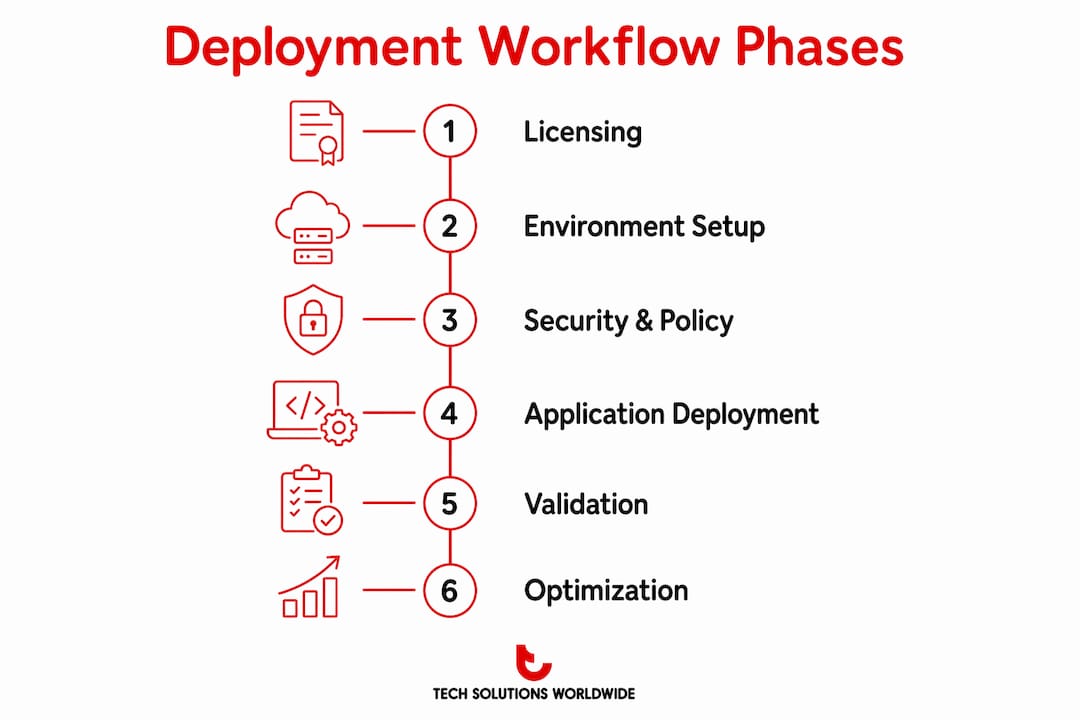
A Microsoft enterprise subscription deployment workflow is a structured, phased process that covers licensing selection, environment configuration, security policy setup, application provisioning, pilot validation, and ongoing monitoring. IT teams that skip any phase face compliance gaps, provisioning failures, and costly downtime. The workflow relies on three core platforms: Microsoft Entra ID for identity management, Microsoft Intune for endpoint control, and Microsoft Volume Licensing Central for agreement management. This guide walks IT professionals and decision-makers through each phase using 2026 best practices, with specific tool recommendations and validation criteria at every stage.
What are the essential steps in planning and licensing for Microsoft enterprise subscriptions?
Licensing is the foundation of every enterprise deployment. Choosing the wrong agreement type creates cost overruns and compliance exposure before a single device is enrolled.
Microsoft offers three primary agreement structures for enterprise buyers:
- Enterprise Agreement (EA): Best for organizations with 500 or more users. Provides fixed three-year pricing and volume discounts. Requires an upfront commitment to a minimum seat count.
- Cloud Solution Provider (CSP): Month-to-month or annual flexibility. Purchased through a certified partner. Suited for organizations that need to scale seats up or down frequently.
- Microsoft Customer Agreement (MCA): A direct, paperless agreement for organizations buying through the Azure portal. No minimum seat requirement, but lacks some EA-level discount structures.
Selecting the right agreement requires assessing three variables: total user count, device count, and compliance requirements. Organizations in regulated industries such as healthcare or finance must confirm that their chosen agreement supports Microsoft 365 compliance add-ons and data residency options. Review the Microsoft 365 Enterprise bundle options before finalizing any agreement type.
Subscription assignment strategy is the next decision. User-based licensing ties a subscription to a named individual and allows access across up to five devices. Device-based licensing assigns a subscription to a specific machine, which works well for shared workstations in manufacturing or retail environments. Mapping this decision to your actual use cases before deployment prevents license waste and audit failures.
Pro Tip: Run a license inventory audit before signing any agreement. Identify active users, inactive accounts, and shared devices. This data directly determines which agreement type and assignment model fits your organization.
For detailed guidance on selecting the right plan, the Microsoft business plan selection resource covers tier comparisons and cost modeling.
How to configure the deployment environment using Microsoft Entra ID and Intune?
Environment configuration determines whether devices enroll correctly and policies apply consistently. Two platforms control this phase: Microsoft Entra ID and Microsoft Intune.

Microsoft Entra ID is the identity backbone of every modern Microsoft deployment. Setup begins with defining administrative roles, creating security groups, and registering devices. Role assignments follow the principle of least privilege: global administrators receive full access, while helpdesk staff receive only device management permissions. Security groups drive policy targeting, so group structure must reflect your organizational units before enrollment begins.
Device join model selection is a critical configuration decision:
- Azure AD Join (cloud-native): Devices connect directly to Entra ID with no on-premises dependency. Best for remote-first or new organizations with no legacy infrastructure.
- Hybrid Azure AD Join: Devices join both on-premises Active Directory and Entra ID. Required for organizations that still rely on Group Policy Objects (GPOs) or on-premises applications.
- Workplace Join: Used for personal or BYOD devices that need conditional access without full management.
Microsoft Intune handles endpoint management after identity is configured. The Intune device management setup process includes creating enrollment profiles, configuring the Enrollment Status Page (ESP), and assigning compliance policies. The ESP controls what users see during device setup and blocks access to corporate resources until required apps and policies are applied.
Pro Tip: Tag devices with group membership during enrollment profile creation. This ensures that the correct compliance policies and app assignments apply automatically at first boot, without manual intervention from IT.
For a full breakdown of Entra ID roles and group structures, the Microsoft Entra ID overview covers configuration options in detail.
What are the best security and policy setup practices for enterprise deployments?
Security configuration runs parallel to environment setup. Zero Trust Architecture is the standard framework for Microsoft enterprise deployments. It treats every access request as untrusted until verified, regardless of network location.
The core security configurations for enterprise Microsoft deployments include:
- Multi-factor authentication (MFA): Required for all user accounts. Configured through Microsoft Entra ID using Authenticator app, FIDO2 keys, or SMS as fallback.
- Conditional Access policies: Define access rules based on user identity, device compliance state, location, and application sensitivity. Block access from noncompliant devices automatically.
- Microsoft Defender for Endpoint: Provides threat detection, vulnerability management, and automated response across enrolled devices. Integrates directly with Intune compliance policies.
- Compliance baselines: Microsoft publishes security baselines for Windows 11, Microsoft 365 Apps, and Edge. Apply these baselines as the starting point, then adjust for organizational requirements.
The Microsoft Enterprise Mobility and Security Suite bundles Entra ID Premium, Intune, and Microsoft Defender into a single license. This suite covers identity protection, endpoint management, and threat response without requiring separate product purchases.
Governance and audit readiness require documented policy assignments and change logs. Every conditional access policy change should be recorded with a business justification. Intune’s audit log captures all administrative actions with timestamps, which satisfies most regulatory audit requirements.
Which deployment strategies and tools work best for application and endpoint provisioning?
Cloud-only organizations use Windows Autopilot and Microsoft Intune for zero-touch provisioning. Organizations with on-premises infrastructure rely on Configuration Manager (SCCM) or a co-management model that combines both platforms.
| Feature category | Cloud-native approach | On-premises or hybrid approach |
|---|---|---|
| Device provisioning | Windows Autopilot v2 with Intune | SCCM task sequences with imaging |
| Application delivery | Intune Win32 apps, Microsoft Store | SCCM software distribution |
| Policy management | Intune configuration profiles | Group Policy Objects (GPOs) |
| Reporting | Intune compliance dashboard | SCCM reporting services |
| Migration path | Direct cloud enrollment | Co-management with gradual workload shift |
Application deployment tiers during Autopilot provisioning follow a blocking and non-blocking structure. Critical applications such as security agents and VPN clients are marked as blocking, meaning the device cannot complete setup until they install successfully. Non-critical applications such as productivity tools deploy in the background after the user reaches the desktop.
The phased rollout sequence for enterprise deployments follows four stages. Lab validation tests the full provisioning flow on a small set of representative hardware. The pilot group includes 5–10% of the total user population and runs for one to two weeks. Early adopters expand coverage to 20–30% of users. Broad deployment completes the remaining population after early adopter metrics confirm success.
Successful teams validate compliance rates of 95% or higher and provisioning times within 20% of the documented baseline before advancing each phase. These two metrics are the clearest indicators that the deployment is ready to scale.
Pro Tip: Document provisioning time during lab validation. This baseline becomes your SLA benchmark. If broad deployment provisioning times exceed the baseline by more than 20%, pause and investigate before continuing.
Co-management migration from SCCM to Intune typically spans 6–12 months for mid-sized organizations. This timeline allows workloads to shift incrementally, reducing the risk of service disruption.
How to validate, troubleshoot, and optimize Microsoft enterprise subscription deployments?
Validation begins during the pilot phase and continues as an ongoing process after broad deployment. Intune provides the primary monitoring tools for this work.
- Review enrollment failure reports. Intune’s device enrollment report shows failed enrollments by error code. Common failures include ESP timeout, app installation errors, and certificate provisioning issues. Address each error category before advancing to the next rollout phase.
- Run compliance reports. The Intune compliance dashboard shows which devices meet policy requirements and which are noncompliant. Filter by policy type to identify whether failures relate to OS version, encryption status, or antivirus configuration.
- Collect diagnostic logs. For devices that fail enrollment or show persistent noncompliance, collect logs using the Intune management extension or the Windows built-in MDM diagnostics tool. Logs identify the exact policy or application that caused the failure.
- Execute remediation actions. Common remediation steps include syncing policies manually, wiping and re-enrolling a device, or resetting the Autopilot profile. Document each remediation action and its outcome to build a troubleshooting knowledge base.
- Monitor ongoing license usage. Intune monitoring and AI analytics tools flag noncompliance, identify unused licenses, and surface cost reduction opportunities. Reviewing license assignment data monthly prevents paying for seats that are no longer active.
Subscription vending automation using Infrastructure as Code reduces manual setup time at scale. Automation pipelines use JSON or YAML parameters to create subscriptions, assign security groups, and configure networking automatically. This approach is standard practice for large enterprises managing dozens of subscription environments.
Key Takeaways
A successful Microsoft enterprise subscription deployment workflow requires completing six defined phases in sequence, with validation criteria met before each phase advances.
| Point | Details |
|---|---|
| Choose the right agreement type | EA, CSP, or MCA selection determines cost structure and compliance capability before deployment begins. |
| Configure identity before endpoints | Microsoft Entra ID roles and groups must be defined before Intune enrollment profiles are created. |
| Apply Zero Trust security from day one | Conditional access and MFA must be active before any device reaches broad deployment. |
| Use phased rollout with defined exit criteria | Advance each phase only when compliance rates reach 95% and provisioning times stay within baseline. |
| Monitor and automate continuously | Intune compliance reports and automation pipelines reduce license waste and manual workload after deployment. |
Technology Solutions Worldwide’s take on modern enterprise deployments
The single most underestimated phase in any Microsoft enterprise deployment is lab validation. Most IT teams treat it as a checkbox. They run one or two devices through the provisioning flow, confirm the desktop appears, and call it done. That approach fails at scale every time.
Lab validation must document provisioning time as a measurable baseline. If a device takes 45 minutes to provision in the lab, that number becomes the benchmark for every subsequent phase. When broad deployment provisioning times drift to 90 minutes, you know exactly where to look. Without that baseline, you are troubleshooting blind.
Co-management is also consistently undervalued as a long-term strategy, not just a migration tool. Organizations that treat co-management as a temporary bridge miss the real benefit: the ability to shift workloads back to SCCM when a specific application or policy requires on-premises control. That flexibility has real operational value, particularly for organizations running specialized manufacturing or clinical software that does not function well in a pure cloud model.
The teams that deploy successfully are the ones that treat the workflow as a system with dependencies, not a checklist. Each phase produces outputs that the next phase depends on. Skipping or rushing any phase creates a debt that surfaces during broad deployment, when the cost of fixing it is highest.
— Technology Solutions Worldwide
Microsoft licensing support for your enterprise deployment
Technology Solutions Worldwide has supported Microsoft enterprise deployments for over 20 years, working with organizations ranging from government agencies to Fortune 500 companies including Coca-Cola and T-Mobile.
The firm provides Microsoft licensing support and services covering agreement selection, subscription assignment planning, migration execution, and post-deployment optimization. Clients receive 20–30% discounts off standard Microsoft subscription pricing. For organizations evaluating agreement types or planning a phased rollout, Technology Solutions Worldwide offers direct consultation to match licensing structure to deployment requirements. Contact the team to get a licensing assessment before your next deployment cycle begins.
FAQ
What are the six phases of a Microsoft enterprise subscription deployment?
The six primary phases are licensing, environment configuration, security and policy setup, application deployment, validation, and ongoing monitoring. Each phase has defined outputs that the next phase depends on.
What is the difference between Windows Autopilot and Configuration Manager for enterprise deployment?
Windows Autopilot delivers zero-touch, cloud-native provisioning through Intune, while Configuration Manager (SCCM) uses task sequences and imaging for on-premises or hybrid environments. Co-management combines both platforms for organizations in transition.
How long does a typical Microsoft enterprise deployment take?
Phased rollouts typically span 6–10 weeks from lab validation through broad deployment. SCCM to Intune co-management migrations take 6–12 months for mid-sized organizations.
What compliance rate is required before advancing a deployment phase?
Teams should validate a compliance rate of 95% or higher and confirm provisioning times stay within 20% of the documented baseline before moving from pilot to early adopters or from early adopters to broad deployment.
Which Microsoft license agreement is best for large enterprises?
The Enterprise Agreement (EA) is the standard choice for organizations with 500 or more users. It provides fixed three-year pricing, volume discounts, and access to the full Microsoft 365 compliance and security add-on catalog.
Recommended
- Windows 10/11 Enterprise E3 & E5 Subscriptions: What You Need to Know – Technology Solutions
- Microsoft Enterprise Mobility and Security Suite – Technology Solutions
- Microsoft 365 Enterprise Bundle: What Organizations Need to Know
- Windows 11 Enterprise LTSC 2024 Upgrade: A Complete Guide for Businesses – Technology Solutions
PURCHASE MICROSOFT INTUNE SUBSCRIPTIONS HERE.